Ishq Mubarak Trending AI Video Editing – Hello friends! These days, AI-style video edits are trending everywhere on social media. People are creating stunning cinematic videos using artificial intelligence and sharing them online. One such video is going viral where a boy is holding flowers in a bag, and suddenly roses begin to fly out from his body in a magical way. The entire scene looks dreamy and romantic.
The best part? This video is created with AI — and you can make one too! You don’t need advanced editing skills or complicated software. With the right AI tools and simple instructions, you can generate a similar video effortlessly. If you’re interested in creating this type of video, read this guide carefully. I’ll walk you through the complete process step by step.
Details of Ishq Mubarak Trending AI Video Editing
As mentioned earlier, this edit is fully created using AI tools — and we’re going to recreate it ourselves. Let’s first understand what happens in the video.
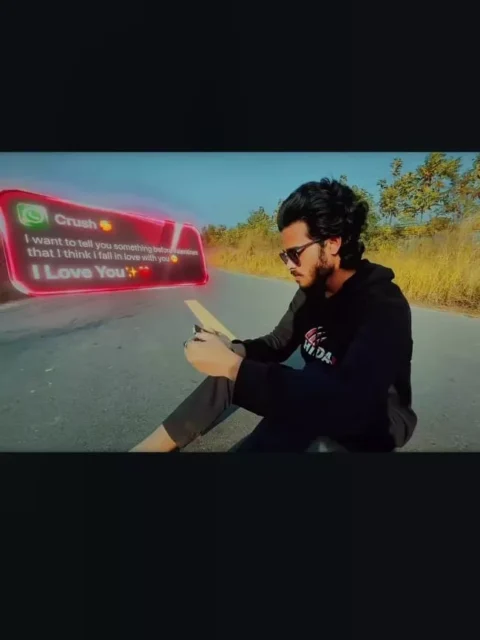
In the clip, a boy is sitting alone on the road. Suddenly, he receives a message on his phone. As he reads it, a 3D love message appears beside him — sent by his crush. Overjoyed, he lies down on the road. In the very next moment, the road magically transforms into a beautiful field full of flowers. He remains lying there while rose petals begin floating out from his body, creating a magical romantic vibe.
This entire transformation effect is done using AI, and now I’ll explain how you can create it too.
Editing Process of This Video
The editing process is simple and divided into two main steps.
First, you need to record a short video of yourself sitting on a road, similar to the original concept. While recording, make sure you also capture a moment where you lie down on the ground.
Next, open the recorded video in any editing app and take a clear screenshot of the frame where you are lying on the road. This screenshot will be used to generate an AI image.
After generating the AI image, we’ll combine both the original video and the AI-generated image to create the final magical transformation effect. But before that, let’s understand how to create the AI image.
How to Create an AI Image
Currently, most people use tools like Gemini or ChatGPT to generate AI images. You can choose either of them. Here, I’ll explain how to use Gemini.
First, copy the image prompt you want to use. Then visit the Gemini website and select the option to create an image. Log in to your account and paste the prompt into the text box.
Next, click on the upload (plus) icon and add the screenshot you captured from your video. After uploading the image, click on the Generate button. Within a few moments, Gemini will create a high-quality AI image based on your screenshot and prompt. Once it’s ready, download and save the image.
After this step, you can use both your original video and the generated AI image to create the final video effect.
Edit the uploaded image.
Strictly keep the original person exactly the same.
Do not change face, skin tone, hairstyle, clothes, body posture or proportions.
Do not zoom in.
Do not crop.
Keep the exact same camera height and body size as original image.
Replace only the background and ground.
The person must be lying naturally inside a very dense wild flower field.
Camera must remain high top view but far enough to show full body clearly.
No zoomed perspective.
No dramatic lens distortion.
Natural 35mm lens look.
Flowers must be tall long-stem wildflowers, waist to chest height.
Extremely dense and tightly packed around the body.
Flowers touching shoulders, legs and arms naturally.
The person should look partially surrounded but not artificially covered.
No empty ground visible.
No road.
No trees.
No background blur.

Use realistic natural flowers (cosmos, wild daisies, small sunflower type, poppy style).
Colors: pink, white, yellow, red, orange.
Add realistic green stems and leaves.

Golden hour sunlight.
Natural shadow direction matching original body lighting.
Ultra photorealistic.
RAW photo style.
DSLR natural photography.
High texture detail.
No painting style.
No CGI look.
Video Prompt:-
the subject's upper body gradually begins to dissolve,and video are zoom out drone shot style animated
How to Create Your Video
Once your image is ready, the next step is turning it into a video using a tool called Flow AI. It’s actually very simple. First, copy the video prompt provided in the article. Then head over to the Flow AI website and log into your account.
After logging in, click on the “New Project” option. Inside the dashboard, you’ll find a Text to Image feature—select it. From there, choose the Frame to Video option.
Now paste the prompt you copied earlier into the prompt box. Next, click the plus (+) icon to upload your images. Add the screenshot first, followed by the image you generated using Gemini. Once both images are uploaded, hit the Generate button and wait a few seconds.
Flow AI will process everything and automatically create your video. When it’s finished, simply download and save it to your device.
Conclusion
That’s it! By following these steps, you can easily create your own trending AI-edited videos. You don’t need advanced editing skills or complicated instructions—everything can be done in just a minute.
If you’re interested in learning more about AI video editing, check out the other tutorials available in the AI Editing section on our website. Hopefully, you found this guide helpful and enjoyable. If you did, feel free to share it with others!