Montagem Nada CapCut Template – Welcome! In today’s guide, I’m going to walk you through a popular video editing style that’s blowing up on social media right now. You’ve definitely seen this trend scrolling through your feed—it’s everywhere. The best part? It’s super simple to create. If you’re not sure how it’s done, don’t worry. I’ll explain everything step by step and even share a ready-to-use template that makes the process effortless.
These days, creators prefer using templates because they save time and deliver professional-looking results instantly. This particular template is unique because it edits your video almost automatically—you just insert your clips, and it does the magic for you. If you want your content to look trendy and polished without complicated editing skills, keep reading. I’ll break everything down clearly so you can recreate the effect yourself.
Complete Explanation of This Viral Editing Style
Let’s take a closer look at how this trending edit works. Understanding the concept first will help you nail the final result.
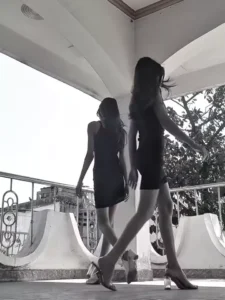
The video usually starts with you wearing casual or everyday clothes. At the beginning of the clip, you stretch one leg backward and then bring it down. Right at that moment, a smooth transition kicks in, and suddenly you appear dressed in stylish or glam attire. That seamless transformation is what makes this edit so eye-catching.
In the second clip, a black-and-white filter is often applied for dramatic effect. While the edit doesn’t rely on heavy effects, you’ll notice a touch of slow motion in the second part, which enhances the overall vibe. The first clip is usually short and doesn’t include slow motion, keeping the transition sharp and impactful. To get everything aligned perfectly, using the template is the easiest solution—it ensures the timing and transitions are flawless.
How to Record Your Clips for This Edit
Now let’s talk about how to prepare your footage correctly.
You’ll need two separate clips for this style of editing, and both should be recorded carefully. For the first clip, wear your normal outfit. Place your camera in a fixed position and make sure it doesn’t move during filming. You can record alone or with a friend. Stand facing the camera from opposite sides if there are two of you. Strike a pose and lift one leg slightly, as if you’re about to walk forward. That’s all you need for the first part.
For the second clip, get fully ready—wear your stylish outfit, do your makeup, and prepare your final look. Keep the camera in the exact same position as before. Recreate the same pose and leg movement to match the first clip. If you’re filming with someone else, cross past each other smoothly while maintaining the same motion.
Once both clips are ready, upload them into the template. With proper alignment and timing, your video will transform into a clean, professional, and trending edit in just a few clicks.
Note: In some locations, CapCut templates might not load because of regional limits set by the app. If clicking the template option doesn’t work, wait a while and try again, or access it directly through the official CapCut application. The external link will open the original CapCut template in a new tab. We have no connection with CapCut—ownership and rights remain with the original creators, and we share these links only to make things easier for users.
How to Use the Montagem Nada CapCut Template
The Montagem Nada CapCut template is available through the “Check Template” button above. Before you start editing, make sure you understand the steps clearly so everything runs smoothly. This section will guide you through the complete process of using the template without any confusion.
First, click on the “Check Template” button to open the template link. It will automatically redirect you to the CapCut app. Make sure you have the latest version of CapCut installed on your device. If not, update or install it before moving forward.
Once the template opens in CapCut, you’ll see a preview of how the final video looks. Below the preview, tap on the “Use Template” option. After that, your phone’s gallery will open, allowing you to select and upload your own video clips.
When you’ve added your clips, press the “Next” button. CapCut will process your video and show you a preview of the edited result. If the template includes heavy effects or transitions, it may take a few seconds to load—just be patient.
Once everything looks good, tap the Export button to save the finished video to your device.
Final Words
That’s it! By following these simple steps, you can easily create a trending Montagem Nada video using the CapCut template. The entire process is straightforward if you follow each step carefully. If you’re interested in learning more about viral editing styles and new trending templates, make sure to keep checking this site for fresh updates and tutorials. Feel free to share this guide with others who might find it helpful!